
Checking a WordPress plugin readme before publishing means confirming four separate things - how the file will actually render on the listing page, whether your target keywords appear as exact phrases in the fields that carry search weight, whether your tags are structured so the ones that matter aren't buried past position five, and whether WordPress.org is even reading the version of the file you think it is.
This checklist assumes the readme is already written - if you're still drafting it, our guide to writing a readme that looks good covers the structure and formatting rules first; this is the sequential next step, run right before you hit publish.
StatWP's readme checker covers most of what's below in a single pass - the actual walkthrough is in the last section.
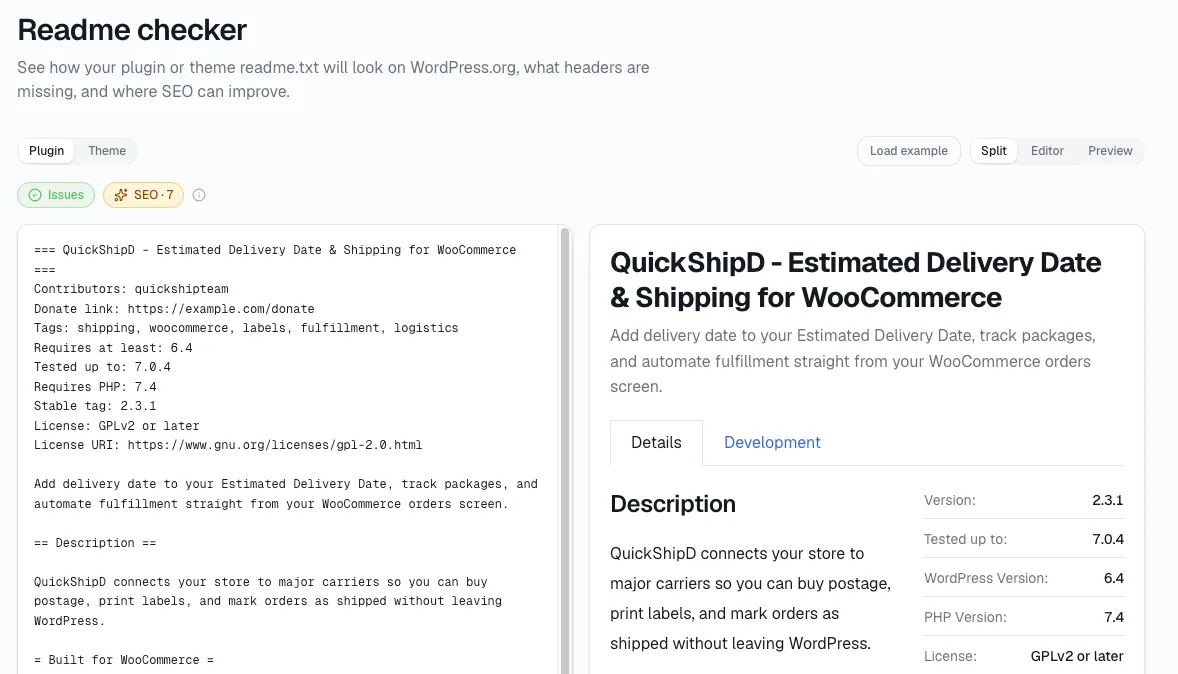
The headline: Before publishing, check your WordPress plugin readme for how it actually renders, whether your target keywords sit in the fields that carry search weight, and whether your tags are structured so the ones that matter aren't buried past position five.
Check one: does it actually render the way you think it does
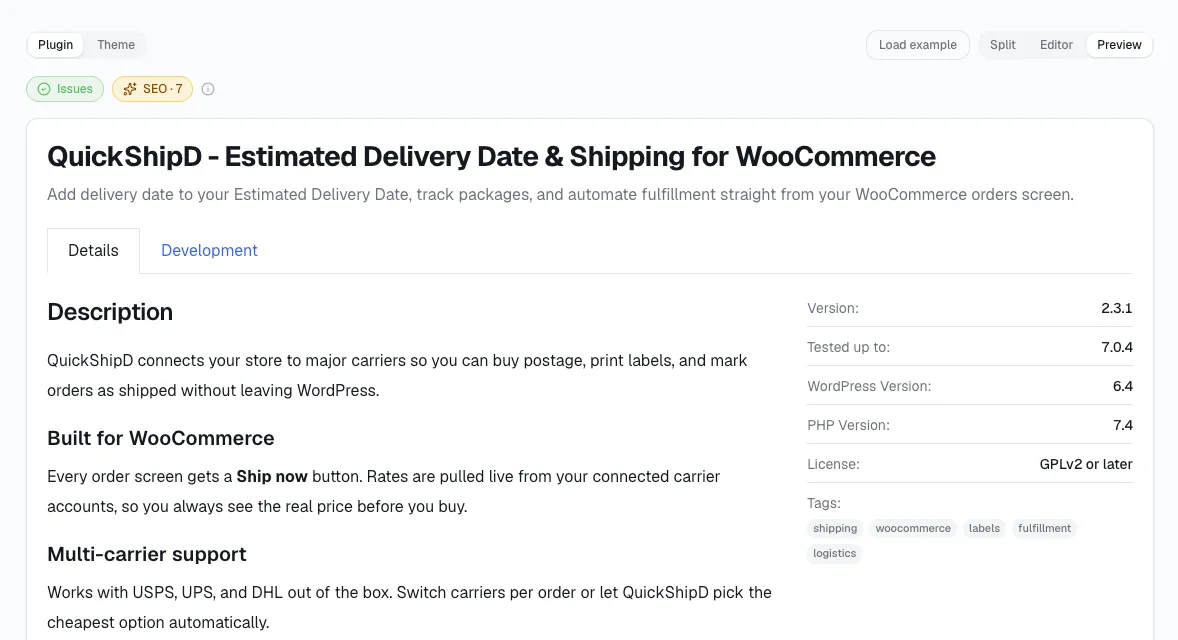
A readme can look perfect in your text editor and still go wrong once WordPress.org renders it:
A section breaks and merges into the one above it.
A screenshot shows up next to the wrong caption.
Formatting it doesn't support quietly turns into a wall of plain text.
The short description runs past 150 characters and gets cut off mid-word.
All but the last are covered in more detail here, including exactly why each one happens. Preview the file the way WordPress.org will actually display it - don't just re-read the raw file.
Check two: is your exact keyword phrase actually in there
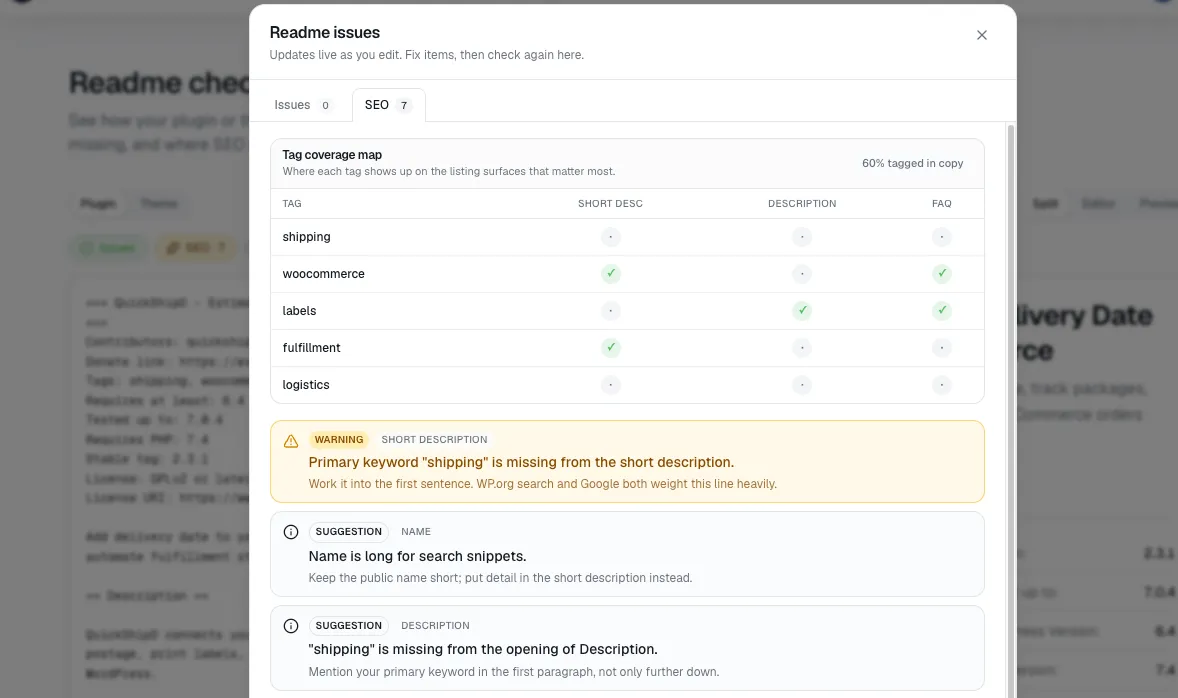
WordPress.org's search algorithm needs an exact phrase to match, not scattered related words. Check that your two or three real target terms appear as literal phrases somewhere in the title, short description, or long description - not only implied by context a human would get but a keyword match wouldn't.
Read the title out loud and ask whether it's the phrase a buyer would actually type, not a phrase that only makes sense once you already know what the plugin does. This is a pattern I've come to trust: the title carries the most weight of any single field in WordPress.org's matching stage, so a vague or purely brand-led title is the single most expensive place to get this wrong.
I've seen a plugin called "Simple Forms" that never actually spells out "contact form" anywhere in its title, short description, or long description won't match a search for "contact form plugin," no matter how good the plugin actually is at building contact forms. The parser isn't inferring intent - it's matching text that's actually there.
Check three: are your first five tags pulling their weight
Only the first five tags actually count for search or display, regardless of how many you've listed. Check that your most important two or three terms are sitting in that first-five window, rather than buried behind less useful tags you added first and never went back to.
While you're in there, check for the mistakes WordPress.org's own tag policy specifically calls out: a competitor's plugin name used as a tag, generic filler like "wordpress" or "wp," and misspelled duplicates that were never cleaned up. I don't think any of these get your listing penalized outright, but none of them do any work either - they're wasted slots in a field where only five slots actually matter.
Check four: is WordPress.org even reading the file you just edited
This is the check I see almost nobody run, and it explains a specific, confusing failure mode: you fix your readme, republish, and the live listing doesn't change at all.
Per WordPress.org's own plugin handbook, it doesn't read the readme.txt sitting in your plugin's trunk directory once your Stable Tag is set to a real version number. It reads the readme.txt inside the tagged folder that Stable Tag points to - so a Stable Tag of "1.2.3" means WordPress.org is reading /tags/1.2.3/readme.txt, not whatever you just changed in trunk. Edit trunk without touching the tagged version and nothing on the live page moves.
Once you've confirmed the right file is being read, I'd give it a little time before assuming a fix failed - search results are cached for roughly ten minutes after a change, so an edit that looks unchanged in a fresh search isn't necessarily broken. Just late.
Run all four in a single pass
Here's the actual click path:
Open statwp.com/tools/readme and paste in your readme.txt file.
Look at the live preview on one side - that's your rendering check.
Scroll to the SEO suggestions list - that's where keyword placement and tag position both get flagged automatically.
Separately, confirm your Stable Tag points to the version where you actually saved your edits - the one check no readme tool can do for you, since it depends on how you published, not on the text itself.
That's the same four checks above, done in one pass instead of four separate re-reads.
What people ask right before they hit publish
Why doesn't my updated screenshot show up yet?
Screenshot images serve through a CDN, so a fresh upload can take a few minutes to propagate, and occasionally longer during a high-traffic period like a major WordPress release. Give it time before assuming the file itself is wrong - that's covered alongside the filename mechanics in our guide to writing the readme in the first place.
I fixed a typo in my description - do I need to ship a new plugin version for it to count?
No. WordPress.org re-reads your readme.txt independently of your plugin's version number, as long as it's reading the right tagged folder in the first place - which is exactly what check four above catches when it isn't happening.
Does a clean readme improve my WordPress.org ranking?
Not by itself. A readme that renders correctly and matches on keywords gets your plugin into the results; what happens after that runs on separate factors like support resolution rate and update recency, covered in our explainer on how WordPress.org plugin rankings actually work. This checklist gets you a fair shot at matching; it doesn't decide where you land once you do.
How often should I re-run this checklist?
Any time you touch the readme - a description rewrite, a tag change, a new screenshot - not just before the plugin's first submission. I've seen a one-line tag edit be exactly the kind of change that's easy to get wrong in a way you won't notice without a preview.
Is there a tool that checks all of this at once instead of manually?
Yes - StatWP's readme checker runs the rendering, keyword, and tag checks described above in one pass. The Stable Tag check still has to be confirmed on your own end, since it depends on how you published rather than on the readme text itself.
What if my target keyword only really fits in the tags, not the title or description?
Put it there, but don't treat it as a substitute for having the phrase somewhere in your title or description too. Tags help WordPress.org categorize the plugin, but the title carries the most weight in matching a search query - a keyword that lives only in your tags is doing less work than the same keyword sitting in your title.