
Writing a WordPress plugin readme that looks good on WordPress.org means matching the structure its own parser expects - the exact section headers it recognizes, the image filenames it can match up, and formatting that renders cleanly on the listing page. A readme that looks fine in your own text editor can still come out wrong once WordPress.org gets hold of it.
This is a formatting and structure guide - how to write the file well, not which keywords go where. For keyword placement, see our full WordPress.org optimization guide; once the file itself is written, checking it before you publish is the sequential next step, not a substitute for this one.
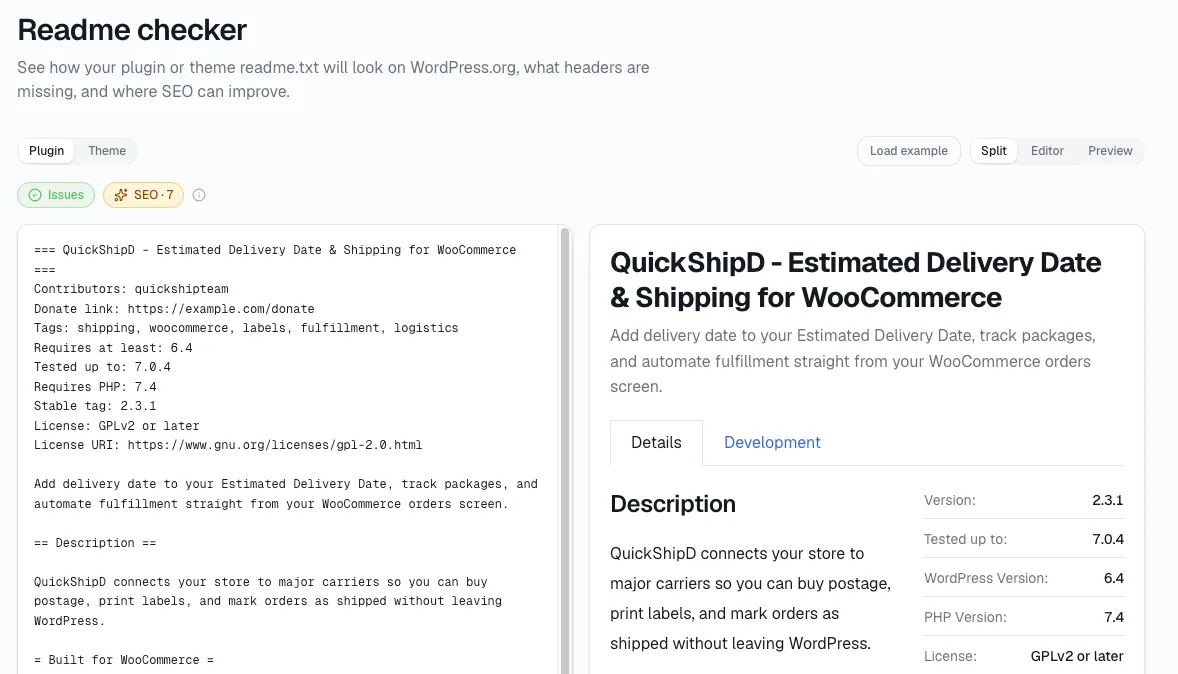
You can catch most of what's below before you ever hit publish - StatWP's readme checker works from a live preview, and there's a full walkthrough of it near the end of this guide.
What matters most: To write a WordPress plugin readme that looks good on WordPress.org, match the exact structure its own parser expects - the section headers it recognizes, the image filenames it can match, and formatting that renders cleanly on the listing page.
One wrong word can swallow a whole section
WordPress.org's readme parser only recognizes a specific set of section headers, written a specific way and wrapped in == marks:
Description
Installation
Frequently Asked Questions
Screenshots
Changelog
...and a few others. Get the wording even slightly wrong and the section doesn't get its own block on the listing page - it just gets swallowed into whatever section came right before it.
Custom sections beyond that list are technically allowed, but WordPress.org's own plugin handbook asks authors to use them sparingly. I've noticed readers get used to seeing the same handful of sections on every plugin page, and a page that wanders from that pattern is one where they miss things they're actually looking for.
Keep your short description inside its own limit
The line right under your plugin's header block - before the Description section even starts - is the short description, and it's the one line that shows up directly under your plugin's name in search results and on the listing page. WordPress.org's own plugin handbook caps it at 150 characters with no markup allowed.
Go over that limit and the extra text doesn't wrap or get skipped politely - I've seen it cut off wherever the 150th character happens to land, mid-word if that's where it falls. Write the short description last, after the full description is done, and count characters before you save.
Match your screenshots by filename, not by caption
Screenshots in the Screenshots section get matched to your uploaded image files by filename and number, not by what the caption says. Get one out of order and the wrong image shows up next to the wrong description - an easy mistake to make during an edit, and an easy one to miss until a user points it out.
The exact mechanics, per WordPress.org's own asset documentation: your files need to be named screenshot-1.png (or .jpg), screenshot-2.png, and so on, all lowercase - an uppercase filename simply won't display. They also have to be uploaded as actual files in your plugin's assets folder; a screenshot linked in from somewhere else won't render at all. The caption itself isn't part of the image - it's just the plain-text line sitting at that position in your readme's Screenshots section, read off in order.
One thing I always rule out before assuming something's broken: screenshot images serve through a CDN, so a change you just made can take a few minutes to show up live, and WordPress.org's own documentation notes it can occasionally stretch to several hours under heavy load, like the week a major WordPress release ships. A blank refresh right after uploading isn't necessarily a mistake.
Keep your tags doing real work, not just sitting there
WordPress.org's own tag policy is more specific than most authors realize. It explicitly discourages listing a competitor's plugin name as a tag, and asks authors to drop generic terms like "wordpress" or "wp," along with misspelled variants and duplicates that don't add anything a real search would use.
I keep the policy's own framing in mind whenever I write one: make the readme for people, not for machines. That matters even more once you remember only the first five tags actually count for search, regardless of how many you list - a check covered in more depth in our guide to checking a readme before publishing. Put your best two or three terms first; treat anything past that as description, not reach.
The formatting mistakes WordPress.org won't warn you about
The readme format supports a limited set of Markdown-like syntax - bullet lists, basic emphasis, links - but not everything a general Markdown renderer would accept. Nest a list too deep or use something unsupported, and WordPress.org doesn't throw an error - it just quietly turns the whole thing into a plain, unformatted paragraph. I've seen a formatting mistake sit on a live listing, unnoticed, for a long time.
Make your changelog worth reading, not just there
A changelog that only lists version numbers tells a skimming reader nothing. This is the pattern that usually holds: a changelog entry that says what actually changed, even briefly, does double duty - it helps a user decide whether to update, and it's the same text a skeptical buyer reads to judge how active you are.
WordPress.org's own guidance is to keep only the current release's notes inside readme.txt itself and move older history out to a separate changelog.txt file in your plugin's repo. It's partly a readability call and partly a practical one - a readme file that grows past roughly 10KB risks parsing errors, so a changelog that never gets trimmed is a real way to get there.
readme.txt also supports video embeds - a YouTube or Vimeo link on its own line auto-embeds, useful for a quick setup demo. One quirk worth knowing: WordPress.org's own docs recommend against making a video the very last line of your FAQ section specifically, since the formatting around it can misbehave there.
Skip the guesswork - preview it before it's live
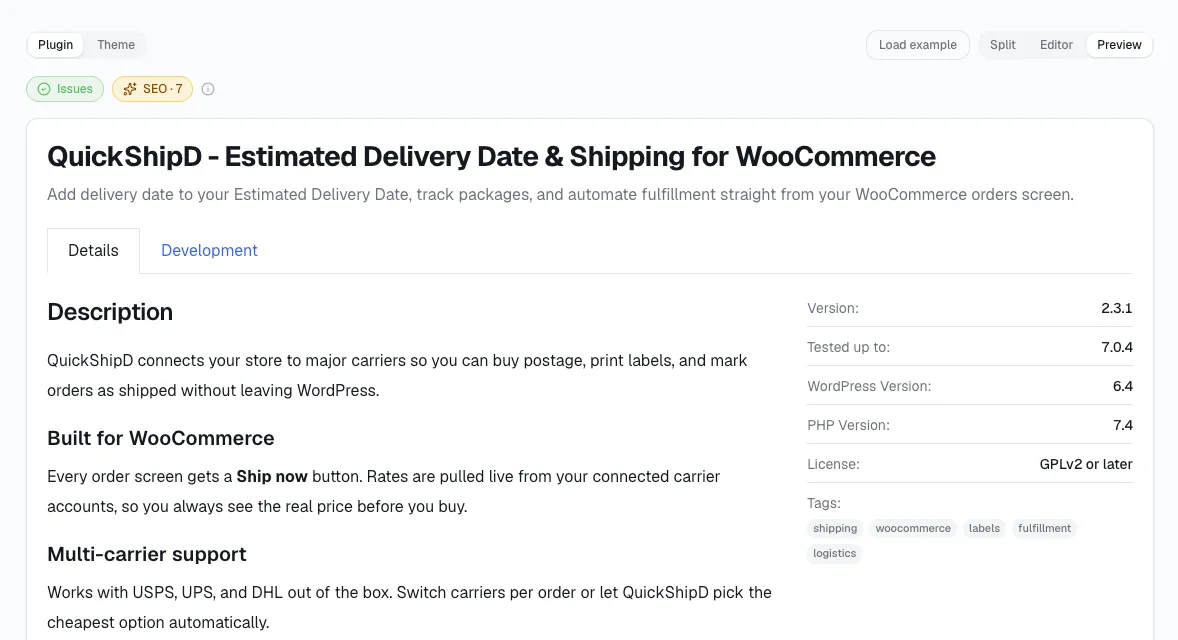
The fastest way to catch a mistake like the ones above is to preview your file the way WordPress.org will actually render it, not the way it looks in your own editor. Here's the shortcut:
Open statwp.com/tools/readme.
Paste in your readme.txt file.
Check the live preview next to it, plus the SEO suggestions list below - both update as you edit. That's covered in more depth in our guide to checking a readme before publishing.
Check Your Readme Before You Publish
A few things people ask after rewriting theirs
Do I need every recognized section, or just the ones that apply?
Just the ones that apply. Description, Installation, FAQ, Screenshots, and Changelog are the common set, but an empty or one-line Installation section is worse than leaving it out entirely - skip it if there's genuinely nothing to configure.
Can I use Markdown features WordPress isn't built for, like tables?
No. readme.txt runs on a limited, custom subset of Markdown, not a full renderer, and unsupported syntax typically falls back to a plain paragraph rather than throwing a visible error. That's exactly why previewing the file matters more than trusting how it looks in your editor.
How many tags should I actually use?
WordPress.org allows up to 12 tags with narrow exceptions, but only the first five actually count for search. Front-load your best two or three terms and treat anything past position five as description rather than additional reach.
Does a formatting mistake actually hurt my WordPress.org ranking?
Not directly - ranking runs on separate factors like keyword match and support resolution rate, covered in our explainer on how WordPress.org plugin rankings actually work. But a readme that renders broken still costs you installs before ranking is ever involved, since a visitor who lands on a garbled page rarely scrolls past it.
How do I know my fix actually went live?
Preview it first with a tool like StatWP's readme checker, and once you've published, give it a few minutes - both search results and screenshot images propagate through a cache, not instantly. The full pre-publish routine, including what to check once it's live, is in our guide to checking a readme before publishing.
I don't think this replaces a second set of eyes, but it catches mistakes a second set of eyes usually misses too - the ones that only show up once WordPress.org has actually parsed the file.